

This page is also available in Arabic.
What it does
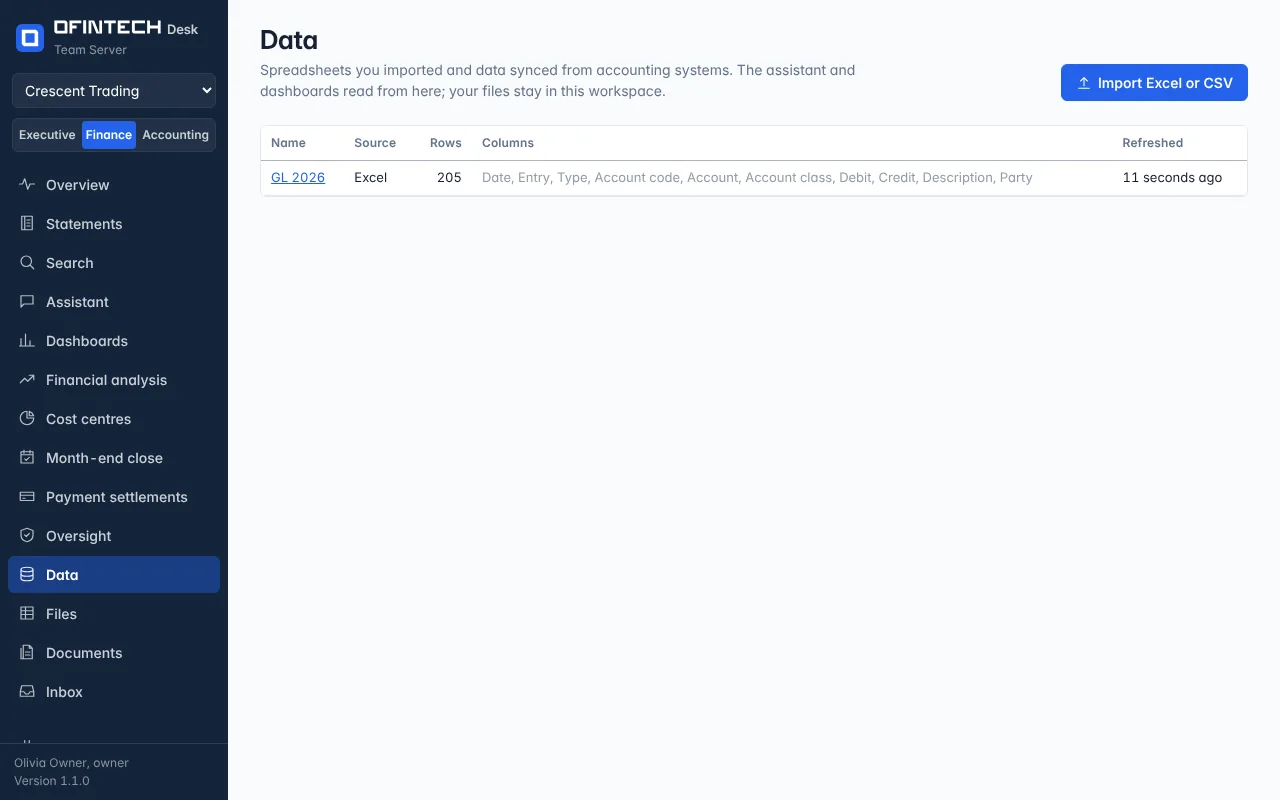
Data holds the datasets of the workspace: an Excel or CSV file you imported (a ledger export, a budget, a bank statement) or a table synced from QuickBooks Online, Zoho Books or Xero (profit and loss, balance sheet, invoices, bills). Dashboards, the assistant, cost centres and the close read from here.
Why it is there
Most finance work starts from a file someone exported. Importing it once, with its columns typed and its dates read the right way round, means every page after that reads the same numbers.
When to open it
- First thing, with last year's general ledger
- Monthly, with the new export of the same ledger
- When a dashboard shows an error about a missing dataset
How it works
Choose an .xlsx, .xlsm or .csv file; formulas are read as their last calculated values. The preview shows the column types and lets you fix the decimal separator, the date order (3 April or March 4) and periods laid across columns, which are turned into rows so dashboards can group by date. A file in the general-ledger template's columns is recognised as a ledger and feeds the statements, the close and cost centres.
A scenario
A bank statement arrives as CSV with dates like 03/04/2026 and amounts with a comma for the decimal. The preview reads it as March 4 and thousands; two switches later it is 3 April and 1,234.56, and the close can match it.
Steps
Import Excel or CSV
Choose the file; the preview appears with the column types.
Check the preview
Decimal separator, date order, periods in columns; update the preview until it reads right.
Name and import
The dataset is ready for dashboards and the assistant.
Questions
Where do my files go?
They stay in this workspace, on this server. Nothing is sent anywhere to import them.